


User manual
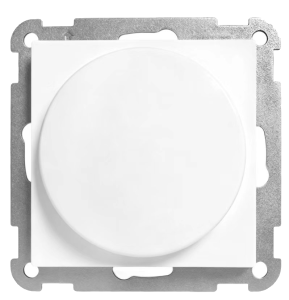
Product number: 4512797
Simplify Wireless Rotary remote – Polar White – RAL 9010 (RS and Pluss) 9003 (One)
Namron Simplify Wireless Rotary Switch gives you simple and intuitive control of your smart lighting, combined with the familiar feel of a traditional rotary dimmer. The switch is battery-powered and completely wireless, allowing it to be placed wherever you need it without any electrical wiring. Use the rotary knob to turn the lights on and off, dim up or down, and adjust the colour temperature of compatible lighting. The rotary switch supports both Bluetooth and Zigbee 3.0, allowing you to choose the protocol that best suits your smart home setup. The desired protocol is easily selected directly on the device. It can be configured using the Namron Simplify app or connected to a compatible smart home hub. For added flexibility, the rotary switch comes with covers for RS16, Namron Pluss and Namron One, making it easy to match different design ranges and existing installations.
FDV
Specifications
- Operating voltage
- Battery CR2450 – 3V DC
- Operating temperature
- -5 to +40 °C
- Relative humidity
- 8 – 80%
- IP Degree
- IP20
- Measurments
- 55x55x14,5mm
- 71x71x23,05mm (With backplate)
- Color
- Polar White – RAL9010 – RS and Pluss
- Clear White – RAL9003 – One
- Number of channels
- 1
- Installation
- Directly on wall
- Mounted in standard wall box
- Protocol and Radio Frequency
- Bluetooth 2.4GHz (IEE 802.15.4)
- Zigbee 3.0 2.4 GHz (IEE 802.15.4)
Choosing between Bluetooth and Zigbee mode
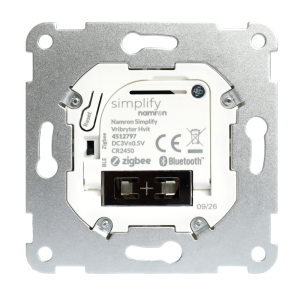
This device support both Bluetooth Mesh and Zigbee 3.0. Slide switch to the desired protocol, Zigbee or Bluetooth (BLE)
Bluetooth Operation
Inclusion
How to perform a Bluetooth inclusion
| Function | How | LED Indicator |
|---|---|---|
| Bluetooth inclusion | Press the Reset button 1 time | Pairing – Flashing Blue Successful – Glows blue |
Exclusion
How to perform a Bluetooth exclusion
| Function | How | LED Indicator |
|---|---|---|
| Bluetooth exclusion | Press the Reset button once, then press and hold it again for 10 seconds | Successful – Glowing red |
Switch control mode
How to change control mode on remote
| Function | How | LED Indicator |
|---|---|---|
| Brightness control | When in Color control mode – Press and hold the knob for 1 sec to get back to brightness control | Successful – Flash Red |
| Color temperature control | When in brightness control mode – Press and hold the knob for 1 sec to get back to color control | Successful – Flash Yellow |
Factory reset
How to perform a Factory reset
| Function | How | LED Indicator |
|---|---|---|
| Setting your device back to factory mode | Click the Reset button 2 times. 3rd time, hold for 10 seconds | Successful – Glows red |
OTA – How to perform OTA Upgrade
How to perform a manual OTA upgrade with the Namron Simplify app
| Function | How | LED Indicator |
|---|---|---|
| Enable OTA mode for manual update with the Simplify app | Click Reset button 10 times | Successful – Flashes between red, green and blue |
Zigbee Operation
Inclusion
How to perform a Zigbee inclusion
| Function | How | LED Indicator |
|---|---|---|
| Zigbee inclusion | Press the Reset button 1 time | Pairing – Flashing green Successful – Glows green |
Exclusion
How to perform a Zigbee exclusion
| Function | How | LED Indicator |
|---|---|---|
| Zigbee exclusion | Press the Reset button once, then press and hold it again for 10 seconds | Successful – Glowing red |
TouchLink
How to perform a TouchLink commisioning
| Function | How | LED Indicator |
|---|---|---|
| TouchLink inclusion (In Zigbee mode) | Press “ON” on the desired channel, press Reset button 2 times. Then press “ON” on the desired channel | Pairing – Flashes blue Successful – Glows blue |
| TouchLink exclusion (In Zigbee mode) | Press “ON” on the desired channel, press Reset button 2 times. Then press “OFF” on the desired channel | Unpairing – Flashing blue Successful – Flashes red |
Operation
How to perform a Find&Bind commisioning
| Function | How | LED Indicator |
|---|---|---|
| Find and bind inclusion (In Zigbee mode and both devices need to be paired to same network, or not paired to any network) | Press “ON” on the desired channel, press Reset button 3 times. Then press “ON” on the desired channel | Pairing – Flashing purple Successful – Glows purple |
| Find and bind exclusion | Press “ON” on the desired channel, press Reset button 3 times. Then press “OFF” on the desired channel | Unpairing – Flashing purple Successful – Flashes red |
| Clear all Find & Bind devices | Press “ON” on the desired channel, press Reset button 3 times. Then press and hold “OFF” on the desired channel for 3 seconds | Unpairing – Flashing purple Successful – Flashes red |
Switch control mode
How to change control mode on remote
| Function | How | LED Indicator |
|---|---|---|
| Brightness control | When in Color control mode – Press and hold the knob for 1 sec to get back to brightness control | Successful – Flash Red |
| Color temperature control | When in brightness control mode – Press and hold the knob for 1 sec to get back to color control | Successful – Flash Yellow |
Factory reset
How to perform a Factory reset
| Function | How | LED Indicator |
|---|---|---|
| Setting your device back to factory mode | Click the Reset button 2 times. 3rd time, hold for 10 seconds | Successful – Glows red |
OTA – How to perform OTA Upgrade
How to perform a manual OTA upgrade with the Namron Simplify app
| Function | How | LED Indicator |
|---|---|---|
| Enable OTA mode for manual update with the Simplify app | Click Reset button 10 times | Successful – Flashes between red, green and blue |
Troubleshooting
| Protocol | Problem | Nb | Cause and what to try |
|---|---|---|---|
| Bluetooth | Device is not found by the Simplify app | 1 | Device is in Zigbee mode. Check that the slider on back on remote is set to BLE. Push the Reset button. Rempte LED will flash blue for 5 seconds to confirm Bluetooth mode is activated. |
| 2 | Reset the bluetooth pairing. Press the Reset button once, then press and hold it again for 10 seconds. The LED indicators will glow red. Then put the device into pairing mode by pushing the Reset button once. | ||
| 3 | Factory reset of the device. Click the Reset button 2 times. 3rd time, hold for 10 seconds. The LED indicator will glow red. Then put the device into pairing mode by pushing the Reset button once. | ||
| 4 | Perform a manual OTA firmware upgrade of the device. Use the Namron Simplify app. You will find the built in OTA upgrade app on upper left corner of the login screen. Please follow the steps described in the app. To set a device into manual OTA upgrade mode press the Reset button 10 times quickly. LED indicator will start to flash between red, green and blue. | ||
| Bluetooth | Device not responding in app | 1 | If the Simplify app has been closed on your device, or if there is a long times since last use you may experience that the device is not responding. Please give the app 10-60 seconds to reconnect to the Bluetooth Mesh. |
| Zigbee | Device is not found by the smart home gateway | 1 | Device is in Bluetooth mode. Check that the slider on back on remote is set to Zigbee. Push the Reset button. Remote LED will flash green for 5 seconds to confirm Zigbee mode is activated. |
| 2 | Reset the Zigbee pairing. Press the Reset button once, then press and hold it again for 10 seconds. The LED indicators will glow red. Then put the device into pairing mode by pushing the Reset button once. | ||
| 3 | Factory reset of the device. Click the Reset button 2 times. 3rd time, hold for 10 seconds. The LED indicator will glow red. Then put the device into pairing mode by pushing the Reset button once. | ||
| 4 | Perform a manual OTA firmware upgrade of the device. Use the Namron Simplify app. You will find the built in OTA upgrade app on upper left corner of the login screen. Please follow the steps described in the app. To set a device into manual OTA upgrade mode press the Reset button 10 times quickly. LED indicator will start to flash between red, green and blue. |