


User manual
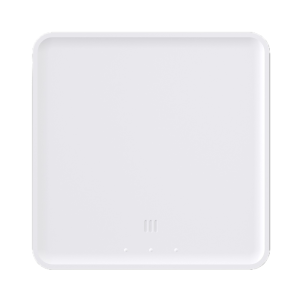
Simplify Gateway
Namron Simplify Gateway is the heart of your smart home system. It connects your Namron Simplify products to the internet and gives you access to advanced features such as automations, remote control, and Zigbee 3.0 support. The gateway communicates via Wi-Fi or Ethernet and supports both Bluetooth Mesh and Zigbee 3.0.
With an easy-to-use installation and full integration with the Simplify app, you get a stable and flexible solution that suits both beginners and advanced users. The gateway is also prepared for future support of Matter.
Specifications
- Operating voltage
- 5V DC – USB-C
- Operating temperature
- +5 to +40 °C
- Relative humidity
- 8 – 80%
- IP Degree
- IP20
- Measurments
- 96x96x29 mm
- Connection
- Wifi 2.4 GHz
- LAN – RJ45
- Installation
- Mounts with included USB-C to USB-A cable and included USB Power adaptor
- Protocol and Radio Frequency
- Bluetooth 2.4GHz (IEEE 802.15.4)
- Zigbee 3.0 2.4 GHz (IEEE 802.15.4)
- WiFi 2.4 GHz (IEEE 802.11)
Product details
Details of Simplify Gateway
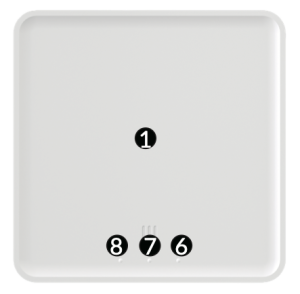
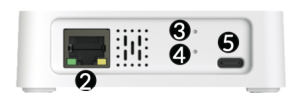
- Namron Simplify gateway
- Ethernet – RJ45 connection
- Button 1
- Button 2
- USB-C connection for power adapter
- LED 1 – Network indicator
- LED 2 – Bluetooth/Zigbee indicator
- LED 3 – Power indicator
Box content
- Namron Simplify gateway
- AC to USB Power adapter
- USB-C to USB-A cable
- Quick start guide
- Template for wall installation
Installation
The Namron Simplify gateway can be installed and connected to internet through a wired (Ethernet) or wireless (WiFi) connection.
Connected with Ethernet cabel connection
- Install a network cable (Sold separately) between the Simplify Gateway and you network router
- Plug the included USB-C to USB-A cable into toe USB power adapter and the Simplify gateway. Install the power adapter into the wall outlet
Connected with wireless WiFi connection
- Plug the included USB-C to USB-A cable into toe USB power adapter and the Simplify gateway. Install the power adapter into the wall outlet
- Configuration of the WiFi settings is done in the Simplify app int he pairing process of the gateway
Add gateway to the Simplify app
To add the gateway to the Simplify app, please follow these steps
- Go to settings in the Simplify app
- Select “Add a new device”
- Select “Manual device discovery”
- Select “Gateway”
- The Simplify app will now search for local devices. Select “Simplify Gateway” in the overview and follow the instructions presented in the app
LED Indicators
| Function | Meaning |
|---|---|
| LED 1 (6) – Glows green | Connected to the internet and connected to the server |
| LED 1 (6) – Flashing green | Not connected to the internet or not connected to the server |
| LED 2 (7) – Glows green | BLE and Zigbee active – No inclusion is active |
| LED 2 (7) – Flashing green | Zigbee inclusion is active |
| LED 3 (8) – Glowing green | Gateway is turned on |
Operation
| Fuction | How | LED Indicator |
|---|---|---|
| Setting the gateway to factory settings | Press and hold button 1 for 5 seconds | LED 1 will flash rapidly to indicate that GW has been reset |
| Enable Zigbee inclusion | Enable Zigbee pairing in the Simplify app | LED 2 will flash green |
| Enable Matter Bridge inclusion | Quickly press 3 times on button 2 | *Available in a future update |
Troubleshooting
| Problem | Nb | Cause and what to try |
|---|---|---|
| Gateway do not connect to internet | 1 | Incorrect SSID or password configured for WiFi. Please attach a network cable to the gateway and to you network router. Restart the gateway and let it connect with cable. Gi into gateway settings found under Settings -> My System -> “System Name” -> Click and hold on gateway name. Reconfigure WiFi settings. |
| 2 | Ethernet cable not connected correctly or cable is damaged. Please check cable connections and replace cable if damaged. | |
| Gateway loses connection intermittently | 1 | Wi-Fi signal weak or unstable Try to place the Gateway closer to the Wi-Fi router or if possible connect the gateway with a ethernet cable. |
| 2 | Router DHCP conflicts Try to restart both the gateway and you internet router to apply a new IP address. | |
| Gateway not detected in the Simplify app | 1 | Gateway pared with existing system. Try to reset the gateway. Press and hold button (1) for 5 seconds. Try to pair gateway once more. “Namron Simplify Gateway” should be visible in the paring process. |
| 2 | App or gateway firmware outdated Please update the Simplify app through Google Play or Apple store. Connect the gateway with a ethernet cable and power it on. Let it sit to download and update the firmware. | |
| No LEDs glowing | 1 | Check Power adapter Power adapter may not be connected or is defective. Please try another power adapter and cable. Replace if defective. |