


User manual
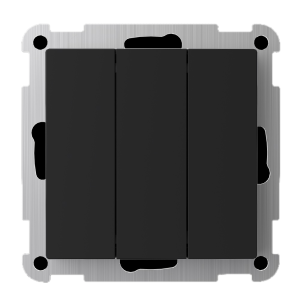
Product number: 4512794
Simplify Wireless remote – Black – RAL 9005
Namron Simplify Channel Switch is a battery-powered, wireless switch that gives you flexible control of your smart home devices – completely without cables. The switch supports both Bluetooth Mesh and Zigbee 3.0, and can be configured with 1, 2, or 3 channels. It works seamlessly with the Namron Simplify app and can also be integrated with Athom Homey.
With interchangeable front plates and easy installation in a standard wall box, you get an elegant and user-friendly solution that fits any room.
Specifications
- Operating voltage
- Battery CR2450 – 3V DC
- Operating temperature
- -20 to +40 °C
- Relative humidity
- 8 – 80%
- IP Degree
- IP20
- Measurments
- 55x55x14,5mm
- 74.4×74,4×14,5mm (With backplate)
- Color
- Black – RAL9005
- Number of channels
- 1, 2 or 3 – Selectable with switch
- 1, 2 or 3 channel faceplates included
- Installation
- Directly on wall
- Mounted in standard wall box
- Protocol and Radio Frequency
- Bluetooth 2.4GHz (IEE 802.15.4)
- Zigbee 3.0 2.4 GHz (IEE 802.15.4)
Choosing between Bluetooth and Zigbee mode
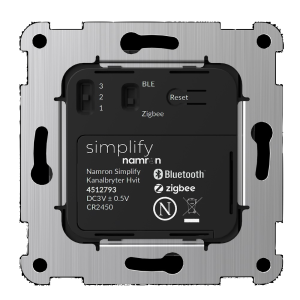
This device support both Bluetooth Mesh and Zigbee 3.0. Slide switch 2 to the desired protocol, Zigbee or Bluetooth (BLE)
Select number of channels
This device supports configuration as 1, 2 or 3 channel switch.
- Slide switch 1 to desired number of channels
- Ensure that the correct faceplate os fitted for full functionality
Operation
| Function | How | LED Indicator |
|---|---|---|
| Bluetooth inclusion | Press the Reset button 1 time | Pairing – Flashing Blue Successful – Glows blue |
| Bluetooth exclusion | Press the Reset button once, then press and hold it again for 10 seconds | Successful – Glowing red |
| Zigbee inclusion | Press the Reset button 1 time | Pairing – Flashing green Successful – Glows green |
| Zigbee exclusion | Press the Reset button once, then press and hold it again for 10 seconds | Successful – Glowing red |
| TouchLink inclusion (In Zigbee mode) | Press “ON” on the desired channel, press Reset button 2 times. Then press “ON” on the desired channel | Pairing – Flashes blue Successful – Glows blue |
| TouchLink exclusion (In Zigbee mode) | Press “ON” on the desired channel, press Reset button 2 times. Then press “OFF” on the desired channel | Unpairing – Flashing blue Successful – Flashes red |
| Find and bind inclusion (In Zigbee mode and both devices need to be paired to same network, or not paired to any network) | Press “ON” on the desired channel, press Reset button 3 times. Then press “ON” on the desired channel | Pairing – Flashing purple Successful – Glows purple |
| Find and bind exclusion | Press “ON” on the desired channel, press Reset button 3 times. Then press “OFF” on the desired channel | Unpairing – Flashing purple Successful – Flashes red |
| Clear all Find & Bind devices | Press “ON” on the desired channel, press Reset button 3 times. Then press and hold “OFF” on the desired channel for 3 seconds | Unpairing – Flashing purple Successful – Flashes red |
| Setting your device back to factory mode | Click the Reset button 2 times. 3rd time, hold for 10 seconds | Successful – Glows red |
| Enable OTA mode for manual update with the Simplify app | Click Reset button 10 times | Successful – Flashes between red, green and blue |
Troubleshooting
| Protocol | Problem | Nb | Cause and what to try |
|---|---|---|---|
| Bluetooth | Device is not found by the Simplify app | 1 | Device is in Zigbee mode. Check that the slider on back on remote is set to BLE. Push the Reset button. Rempte LED will flash blue for 5 seconds to confirm Bluetooth mode is activated. |
| 2 | Reset the bluetooth pairing. Press the Reset button once, then press and hold it again for 10 seconds. The LED indicators will glow red. Then put the device into pairing mode by pushing the Reset button once. | ||
| 3 | Factory reset of the device. Click the Reset button 2 times. 3rd time, hold for 10 seconds. The LED indicator will glow red. Then put the device into pairing mode by pushing the Reset button once. | ||
| 4 | Perform a manual OTA firmware upgrade of the device. Use the Namron Simplify app. You will find the built in OTA upgrade app on upper left corner of the login screen. Please follow the steps described in the app. To set a device into manual OTA upgrade mode press the Reset button 10 times quickly. LED indicator will start to flash between red, green and blue. | ||
| Bluetooth | Device not responding in app | 1 | If the Simplify app has been closed on your device, or if there is a long times since last use you may experience that the device is not responding. Please give the app 10-60 seconds to reconnect to the Bluetooth Mesh. |
| Zigbee | Device is not found by the smart home gateway | 1 | Device is in Bluetooth mode. Check that the slider on back on remote is set to Zigbee. Push the Reset button. Remote LED will flash green for 5 seconds to confirm Zigbee mode is activated. |
| 2 | Reset the Zigbee pairing. Press the Reset button once, then press and hold it again for 10 seconds. The LED indicators will glow red. Then put the device into pairing mode by pushing the Reset button once. | ||
| 3 | Factory reset of the device. Click the Reset button 2 times. 3rd time, hold for 10 seconds. The LED indicator will glow red. Then put the device into pairing mode by pushing the Reset button once. | ||
| 4 | Perform a manual OTA firmware upgrade of the device. Use the Namron Simplify app. You will find the built in OTA upgrade app on upper left corner of the login screen. Please follow the steps described in the app. To set a device into manual OTA upgrade mode press the Reset button 10 times quickly. LED indicator will start to flash between red, green and blue. |