


User manual
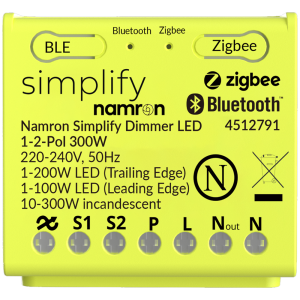
Simplify 1-2-Pole Dimmer Puck
Namron Simplify Dimmer LED 1–2 Pole 300W is part of the new Namron Simplify series – developed with a focus on user-friendliness and flexibility. The dimmer allows you to choose between Bluetooth Mesh and Zigbee 3.0 and can easily be controlled via the Namron Simplify app or integrated with Athom Homey for advanced features. With support for both 1-pole and 2-pole dimming, it’s perfect for LED and incandescent lamps, giving you full control over your lighting – whether you want simple app control or advanced smart home automation.
Specifications
- Operating voltage
- 220-240V 50/60Hz
- Operating temperature
- -20 to +40 °C
- Relative humidity
- 8 – 80%
- IP Degree
- IP20
- Measurments
- 45.5x45x18 mm
- Load
- 1-Pole or 2-Pole
- LED:
- 3-300VA Trailing edge,
- 3-100VA Leading edge
- Incandescent lamp: 10-300VA
- Installation
- Mounted in standard wall box
- Protection
- Short circuit protection
- Overload protection
- Overtempterature protection
- Protocol and Radio Frequency
- Bluetooth 2.4GHz (IEE 802.15.4)
- Zigbee 3.0 2.4 GHz (IEE 802.15.4)
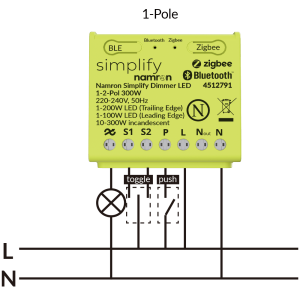
Wiring diagram
1-Pole configuration
2-Pole configuration
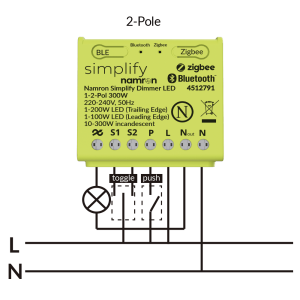
Connecting Switches
External switches can be connected to inputs S1, S2, and P. Only momentary (spring-return) switches are supported.
- The inputs support the following commands:
- S1 – On / Dim Up
- S2 – Off / Dim Down
- P – On/Off & Dim Up/Down
Choosing between Bluetooth and Zigbee mode
| Function | How | LED Indicator |
|---|---|---|
| Activate Zigbee mode | Click and hold the zigbee button for 10 seconds | Flashes green for 5 seconds when mode is changed |
| Activate Bluetooth mode | Click and hold the Bluetooth button for 10 seconds | Flashes blue for 5 seconds when mode is changed |
Operation
| Function | How | LED Indicator |
|---|---|---|
| Bluetooth inclusion | Click the Bluetooth (BLE) button 1 time | Pairing – Flashing Blue Successful – Glows blue |
| Bluetooth exclusion | Press the Bluetooth (BLE) button once, then press and hold it again for 10 seconds | Successful – Glowing red |
| Zigbee inclusion | Click the Zigbee button 1 time | Pairing – Flashing green Successful – Glows green |
| Zigbee exclusion | Press the Zigbee button once, then press and hold it again for 10 seconds | Successful – Glowing red |
| External switch inclusion and exclusion | Turn the light on, Push a external switch 9 times and the 10th tome hold for 5 seconds | Pairing – Lights off-on x2 Successful – Lights off-on x1 |
| TouchLink inclusion | Click the Zigbee button 2 times. Enable TouchLink pairing on the remote device | Pairing – Flashing blue Successful – Glows blue |
| Find and bind inclusion | Click the Zigbee button 3 times. Enable pairing on the remote device | Pairing – Flashing purple Successful – No indication |
| Setting your device back to factory mode | Click the Zigbee or Bluetooth (BLE) button 2 times. 3rd time, hold for 10 seconds | Successful – Glows red |
| Enable OTA mode for manual update with the Simplify app | Zigbee mode – Click 10 times on Zigbee button. BLE mode – Click 10 times on the BLE button | Successful – Flashes between red and blue |
| Disable buttons | Click the Zigbee or Bluetooth (BLE) button 6 times. 7th time hold for 3 seconds | Enable – LED 1 & 2 flashes yellow 3 times Disable – LED 1 & 2 flashes yellow 3 times |
Troubleshooting
| Protocol | Problem | Nb | Cause and what to try |
|---|---|---|---|
| Bluetooth | Device is not found by the Simplify app | 1 | Device is in Zigbee mode. Click and hold the Bluetooth button for 10 seconds. BLE LED will flash blue for 5 seconds to confirm Bluetooth mode is activated |
| 2 | Reset the bluetooth pairing. Press the Bluetooth (BLE) button once, then press and hold it again for 10 seconds. The LED indicator will glow red. Then put the device into pairing mode by pushing the BLE button once. | ||
| 3 | Factory reset of the device. Click the Bluetooth (BLE) button 2 times. 3rd time, hold for 10 seconds. The LED indicator will glow red. Then put the device into pairing mode by pushing the BLE button once. | ||
| 4 | Perform a manual OTA firmware upgrade of the device. Use the Namron Simplify app. You will find the built in OTA upgrade app on upper left corner of the login screen. Please follow the steps described in the app. To set a device into manual OTA upgrade mode press the BLE button 10 times quickly. LED indicator will start to flash between red and blue. | ||
| Bluetooth | Device not responding in app | 1 | If the Simplify app has been closed on your device, or if there is a long times since last use you may experience that the device is not responding. Please give the app 10-60 seconds to reconnect to the Bluetooth Mesh. |
| Zigbee | Device is not found by the smart home gateway | 1 | Device is in Bluetooth mode. Click and hold the Zigbee button for 10 seconds. Zigbee LED will flash green for 5 seconds to confirm Zigbee mode is activated |
| 2 | Reset the zigbee pairing. Press the Zigbee button once, then press and hold it again for 10 seconds. The LED indicator will glow red. Then put the device into pairing mode by pushing the Zigbee button once. | ||
| 3 | Factory reset of the device. Click the Zigbee button 2 times. 3rd time, hold for 10 seconds. The LED indicator will glow red. Then put the device into pairing mode by pushing the Zigbee button once. | ||
| 4 | Perform a manual OTA firmware upgrade of the device. Use the Namron Simplify app. You will find the built in OTA upgrade app on upper left corner of the login screen. Please follow the steps described in the app. To set a device into manual OTA upgrade mode press the Zigbee button 10 times quickly. LED indicator will start to flash between red and blue. | ||
| – | Lights flicker or do not dim propberly | 1 | Could be caused by incompatible bulbs (non-dimmable or mixed types). Check bulbs and only use bulbs of same type |
| 2 | Minimum brightness is not calibrated. Please navigate to device settings in the Simplify app, or on supported gateway to calibrate the minimum brightness. | ||
| 3 | Wrong dimming method is defined. Please navigate to device setting in the Simplify app, or on supported smart home gateway and select correct dimming method for connected load. | ||
| – | Buzzing sound from dimmer | 1 | Incompatible LED driver or load. Try to change dimming method for the dimmer. Please navigate to device setting in the Simplify app, or on supported smart home gateway and select correct dimming method for connected load. |
| 2 | Could be caused by incompatible bulbs (non-dimmable or mixed types). Check bulbs and only use bulbs of same type |